How court booking works · Player side

Book a court, bring the crew, just play.

Reserving court time is quick. You pick a date and slot, fill in your details and any extras, and pay. PickleTime confirms it automatically, then you just check in and play. Here's the whole booking, start to finish.

01

Book

Set up your session
  • Pick Your Slot
  • Your Details
  • Add Extras
02

Pay

Settle up
  • Choose a Method
  • Scan & Upload
03

Confirm

Automatic, in seconds
  • Confirmed Automatically
  • Your QR Code
04

Check In

Join the court queue
  • Self or Front Desk
  • Into the Queue
01
Book

Set up your session

Choose when you'll play, tell us who's coming, and add anything you need for the day.

Book · 01

Pick Your Slot

Start with the basics. Choose a date, pick an open court, and grab a time. Your running total stays on the right the whole way.

  • 1Pick a day on the calendar. The green dots mark days with openings.
  • 2Choose an open court. Fully booked ones are greyed out.
  • 3Tap a time slot, then hit Confirm booking to keep going.
pickletime.ph › courts › bacolod‑pickle‑hub
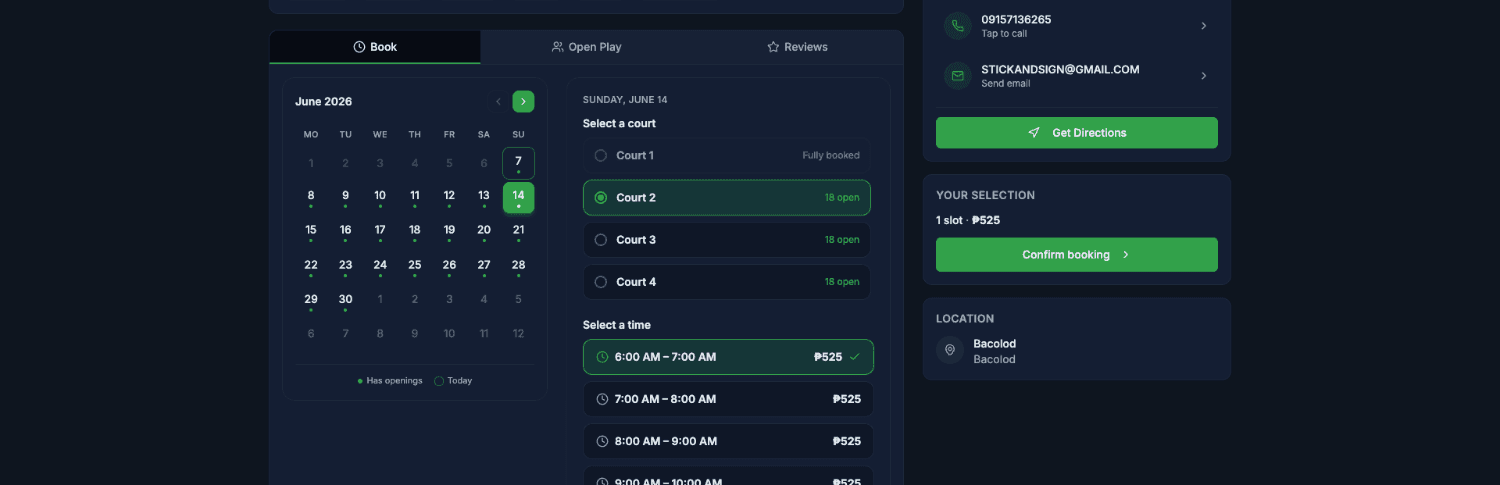
Select date, court, and time
Book · 02

Your Details

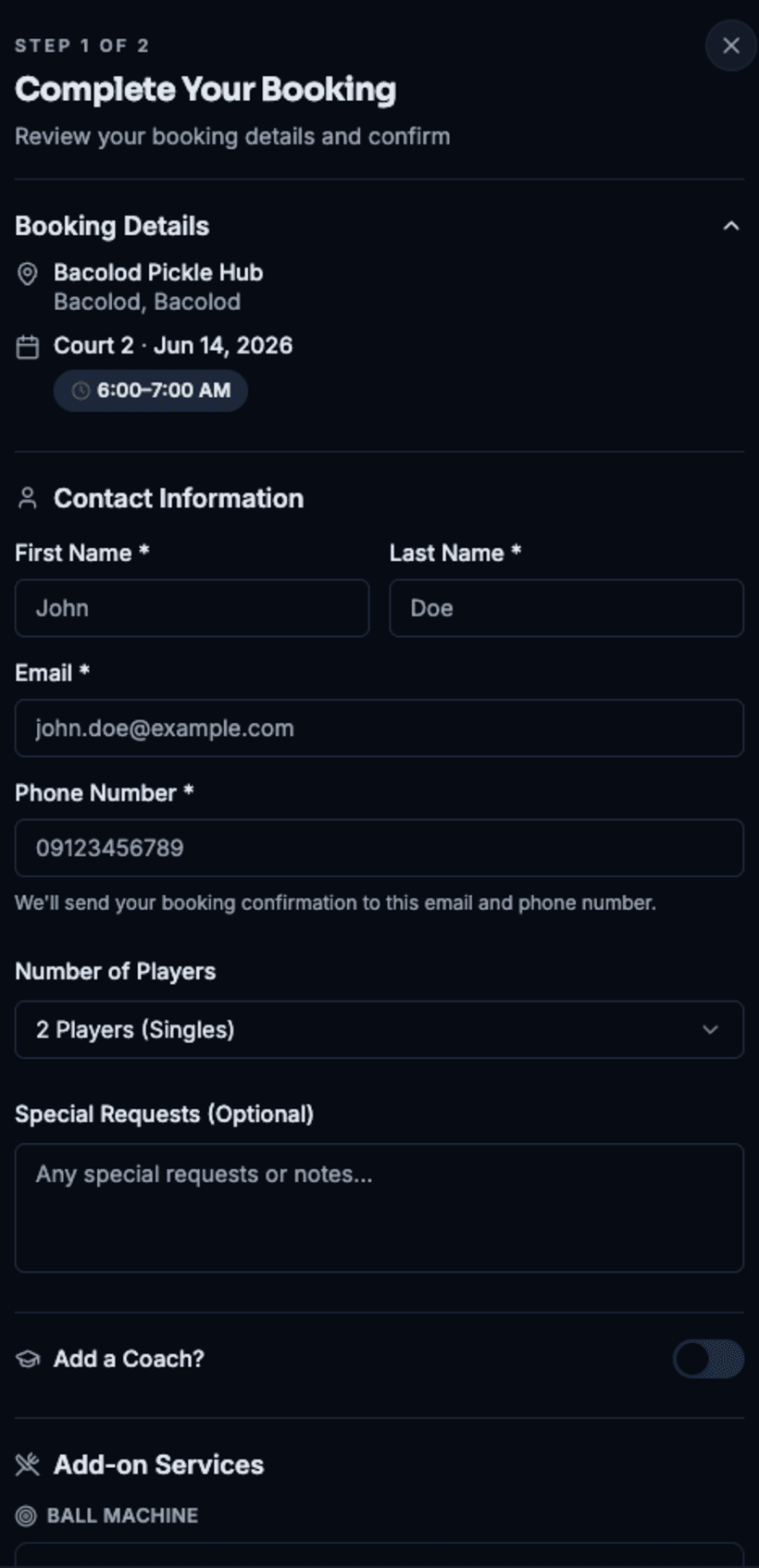
Tell us who to send the confirmation to, and how many of you are playing. Want a coach on court? Flip the toggle.

  • 1Your booking details (court, date, and time) sit right at the top.
  • 2Add your name, email, and phone so the venue can reach you.
  • 3Set the number of players, and toggle Add a Coach if you'd like one.
complete your booking · step 1
Contact information form
Book · 03

Add Extras

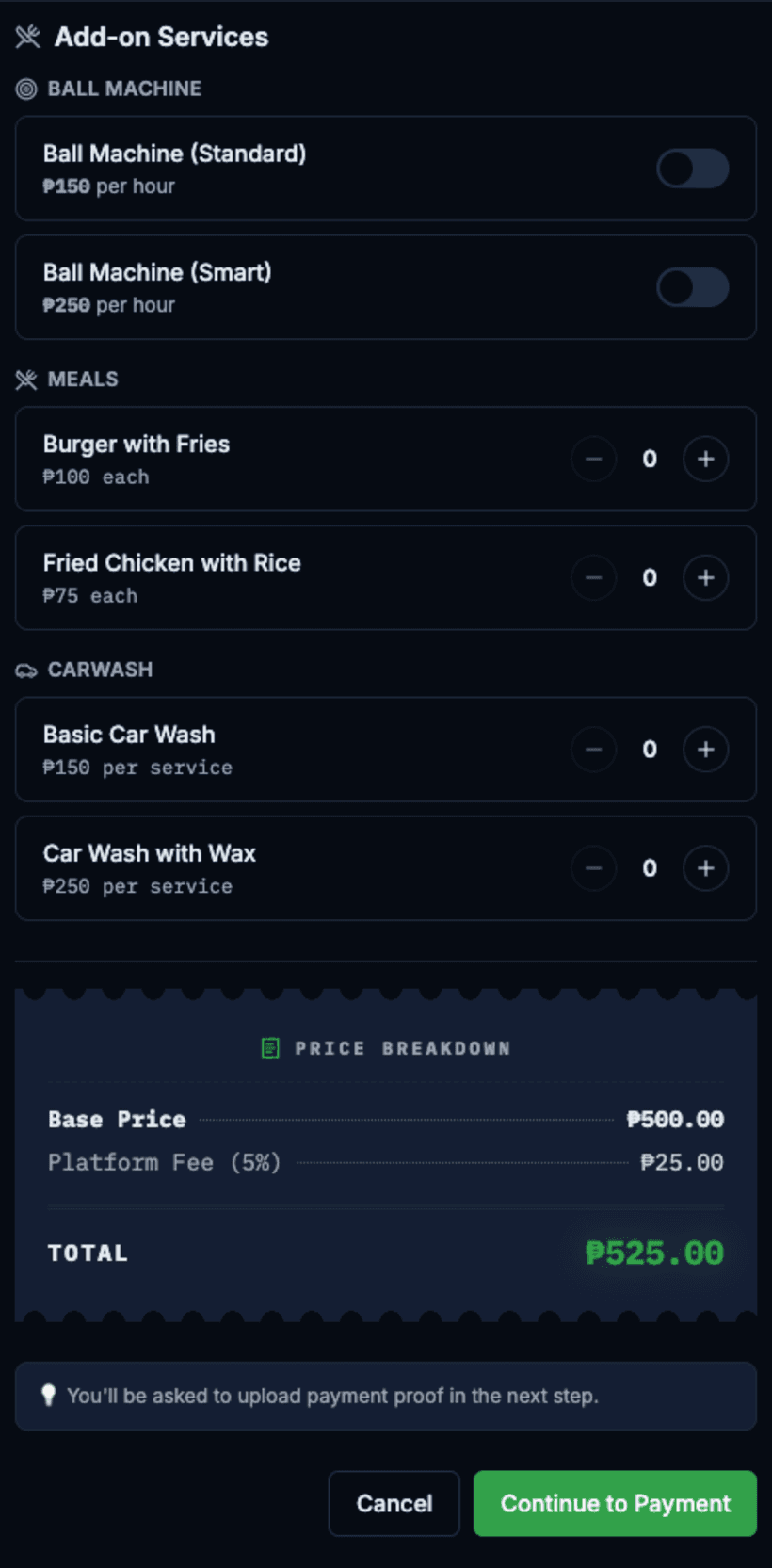
Make a day of it. Rent a ball machine, order food, or even get your car washed while you play. The total updates as you go.

  • 1Rent a ball machine by the hour, standard or smart.
  • 2Order meals and add a car wash using the plus and minus buttons.
  • 3The price breakdown keeps a running total. Hit Continue to Payment.
add‑on services
Add-on services
02
Pay

Settle up

Pick how you want to pay, send it over, and upload your proof.

Pay · 04

Choose a Method

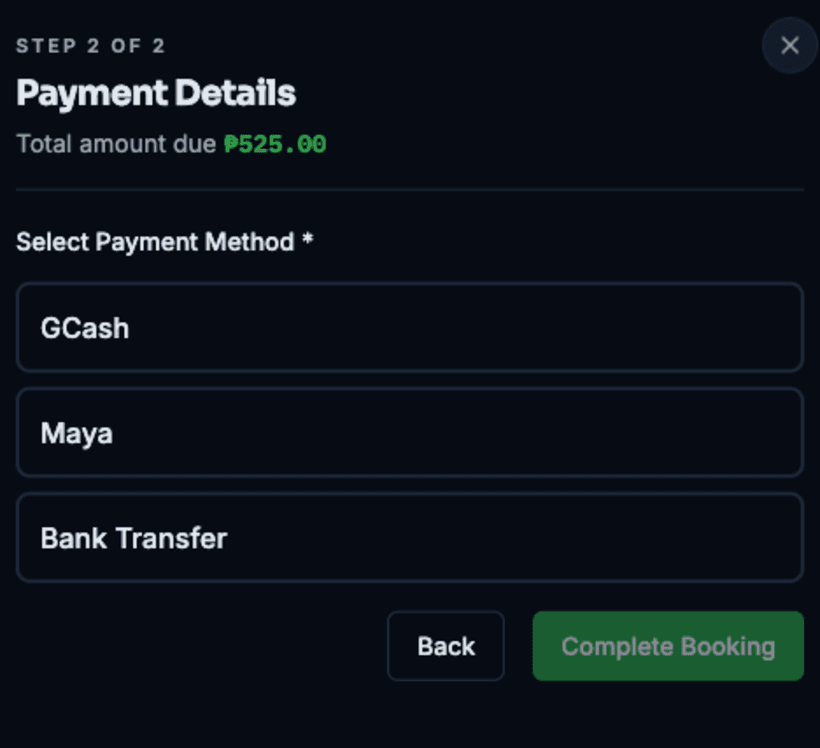
Your total is locked in. Choose how you'd like to pay and you'll get the details to send it.

  • 1Check the total amount due at the top.
  • 2Pick GCash, Maya, or a bank transfer.
  • 3Hit Complete Booking once you've chosen.
payment · step 2
Choose payment method
Pay · 05

Scan & Upload

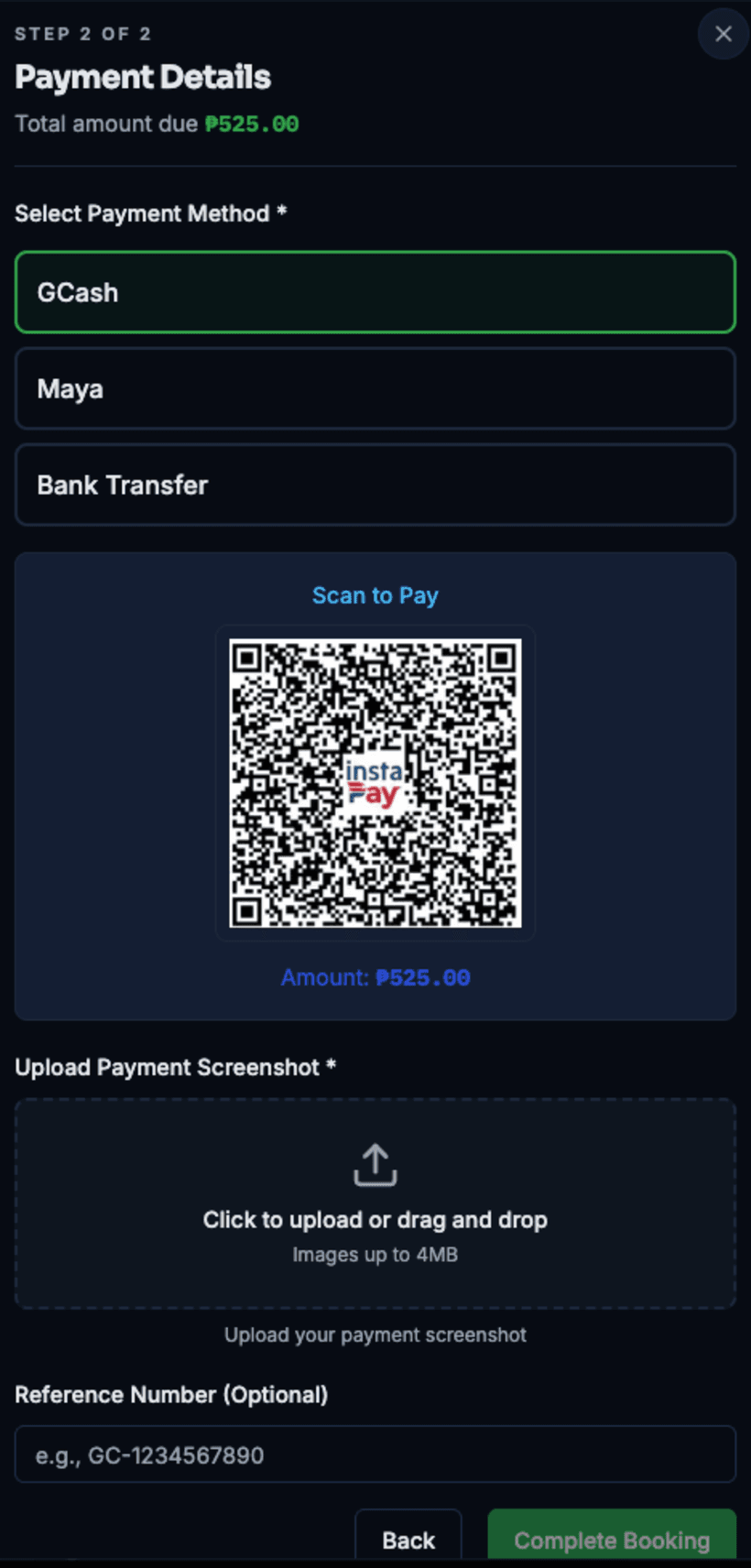
Scan the QR to pay, then upload a screenshot of your receipt so the venue can check it against your booking.

  • 1The Scan to Pay QR already has your exact amount.
  • 2Upload your payment screenshot. A reference number helps too.
  • 3Hit Complete Booking to send it in.
scan to pay
Scan to pay and upload proof
03
Confirm

Confirmed on the spot

No waiting on staff. PickleTime verifies your payment automatically, so you're confirmed in seconds, not hours.

Confirm · 06

Confirmed Automatically

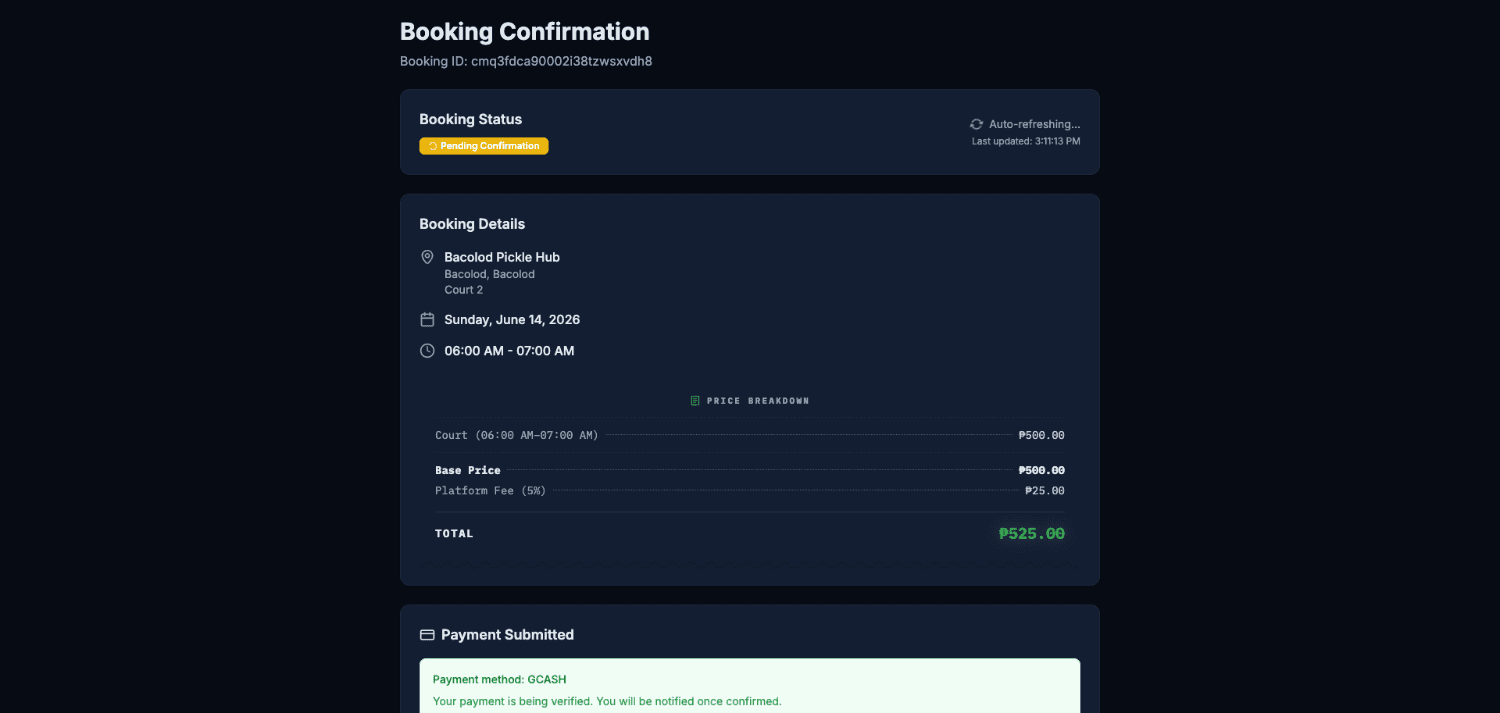
Right after you pay, PickleTime verifies it for you. You might catch a quick pending state before it flips to confirmed, with no one to chase down.

  • 1You may briefly see Pending Confirmation while it auto-verifies.
  • 2The page auto-refreshes, so there's no need to reload.
  • 3Your booking details and payment proof are saved right here.
pickletime.ph › booking › pending
Pending confirmation
Confirm · 07

You're Booked

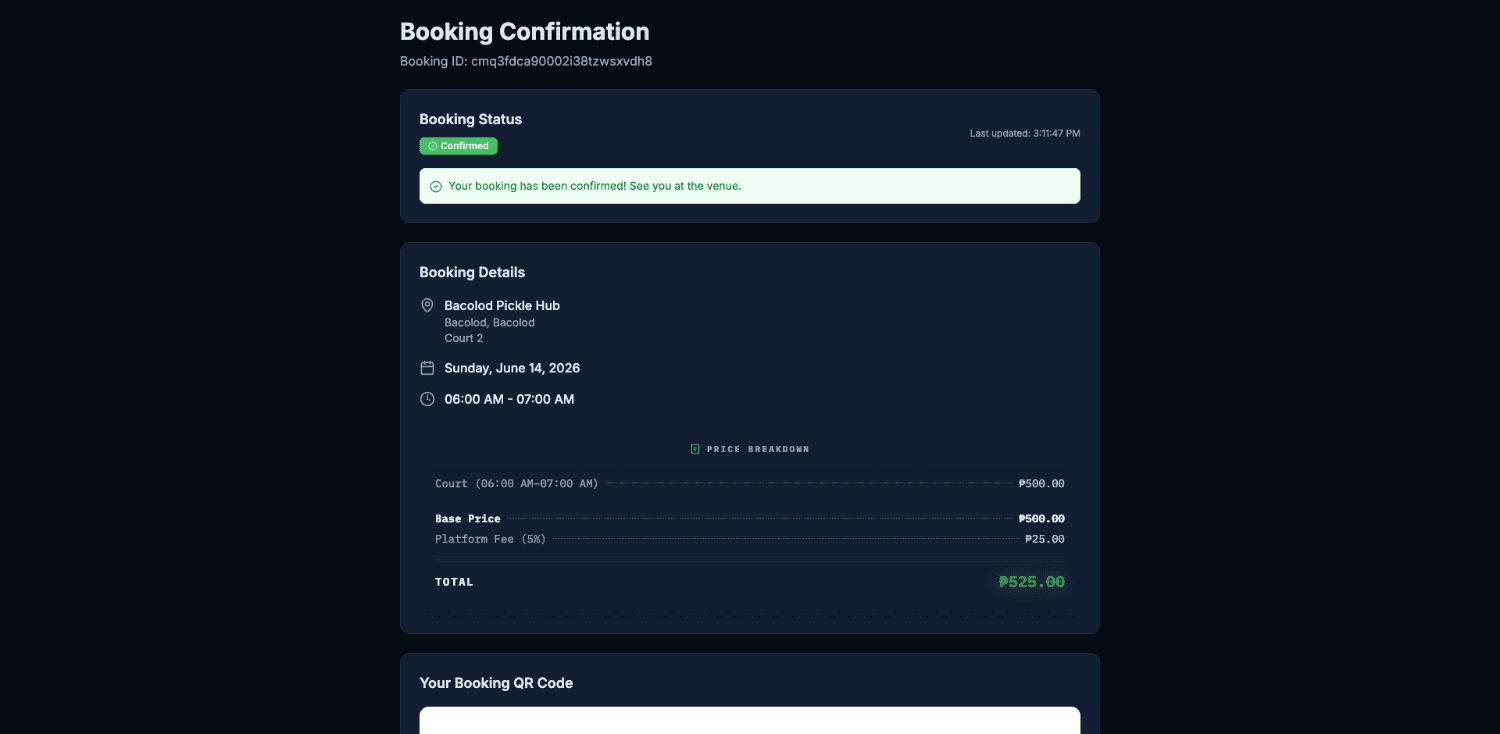
Seconds later your status is confirmed and you get a booking QR code. That QR is your check-in pass for game day.

  • 1Your status turns to Confirmed with a friendly heads-up.
  • 2All your booking details stay in one place.
  • 3Save the QR code. It's how you check in to play.
pickletime.ph › booking › confirmed
Booking confirmed
04
Check In

Check in to join the queue

Your booking is already confirmed. On game day, a quick check-in drops you into the court queue so staff know you're here.

Check In · 08

Two Ways to Check In

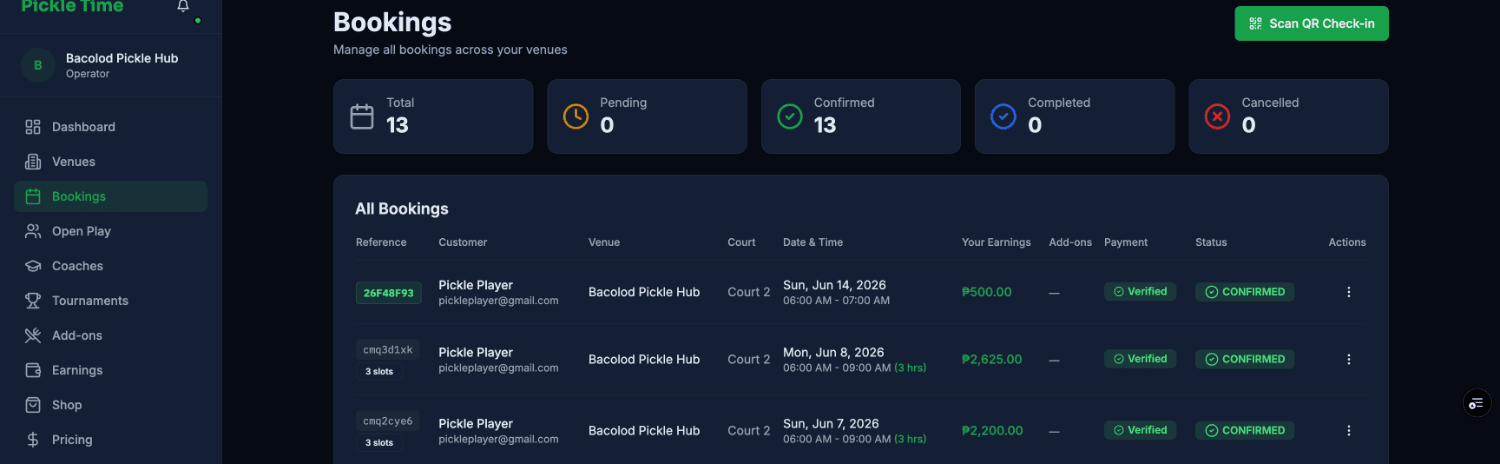
Every confirmed booking shows up at the front desk. When you arrive you can self check-in with your booking QR, or have the staff scan you in. Either way takes a second.

  • 1Self check-in by scanning your own booking QR at the venue.
  • 2Or the front desk taps Scan QR Check-in to bring you in.
  • 3There's no payment to chase. Every booking here is already Confirmed and Verified.
operator › bookings
Operator bookings list with check-in
Check In · 09

Into the Court Queue

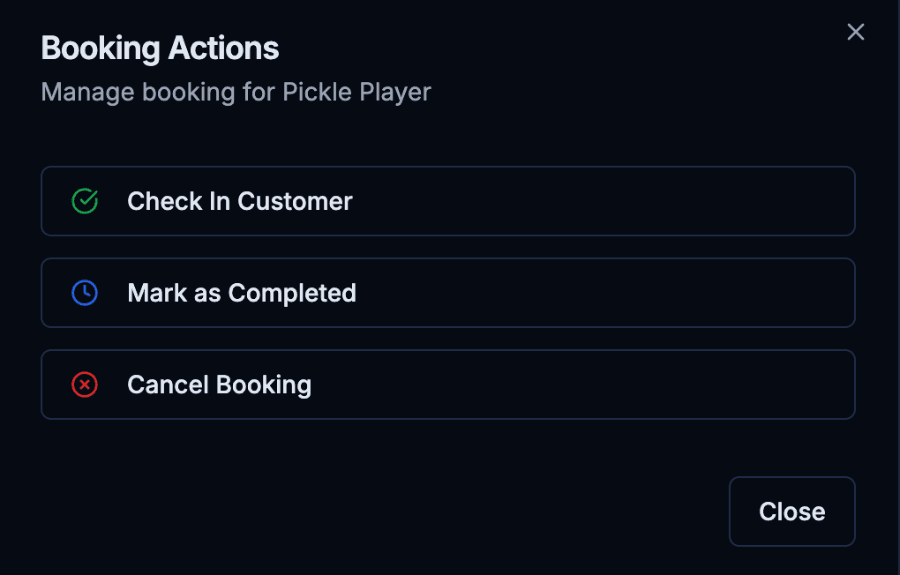
From your booking, the front desk taps Check In Customer and you're added to the court queue. When your court is ready, you're up.

  • 1Check In Customer marks you as here and queues you for your court.
  • 2After your game, staff Mark as Completed to free the court.
  • 3Plans change? A booking can still be cancelled from the same menu.
booking actions
Booking actions menu
+
Good to know

A few things before you book

The small stuff that makes booking a court painless.

Green dots mean openings
On the calendar, a green dot marks a day with open slots. Greyed-out courts are already fully booked.
Bring a coach
Flip the Add a Coach toggle while you book if you want a pro on court with you.
Make a day of it
Extras cover ball machines, meals, and even a car wash while you play.
What's the platform fee?
Pricing adds a small 5% Pickle Time fee on top of the court rate. The total you see is what you pay.
Auto-confirmed, every time
Court bookings and payments are confirmed automatically by PickleTime. No waiting on staff to approve you.
Keep your QR code
Your booking QR is your check-in pass. Scan it yourself at the venue, or show it to the front desk to join the court queue.